# Player Shops
# Renting a shop region
#### **Renting a shop**
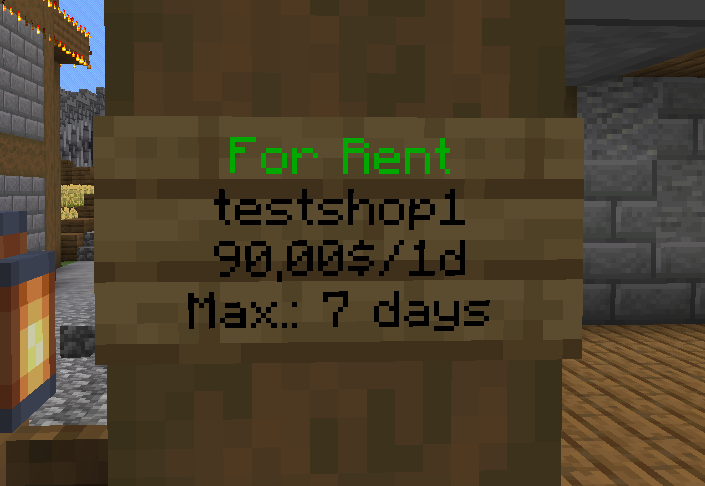
To rent a shop you have to go to **/warp playershops**. At this location you find various buildings with signs next to the door. When a shop is available for rent, the sign will display **For Rent** and you can right click the sign to rent the shop for a day. Right clicking the sign multiple times makes you rent it for multiple days.
Once you've rented a shop region, you can place blocks inside the building and design it to your specific style.
[](https://wiki.unitedfactions.net/uploads/images/gallery/2021-07/Rg7shop.png)
#### **Useful shop managing commands:**
**/arm sellback \[REGION\]**
Accidentally rented a region? No problem! You can sell it back to the server. This will pay you back a percentage of the time you still have left on the shop.
---
**/arm settplocation**
**/arm settplocation delete**
Set/unset the location your costumers will be teleported to when they directly teleport to your shop.
---
**/arm addmember \[REGION\] \[PLAYER\]
/arm removemember \[REGION\] \[PLAYER\]**
Add or remove members to your shop who can also place down chests/manage inventory.
---
**/arm regionfinder**
Finds regions still available for rent
---
**/arm gui**
Open region GUI, allows you to see regions that you own and of which you are a member.
---
**/arm tp \[REGION\]**
Teleport to your region
# Creating a shop
To create a shop you first have to rent a shop region. Haven't done this yet? Read the page about renting a shop region first: [https://wiki.unitedfactions.net/books/player-shops/page/renting-a-shop-region](https://wiki.unitedfactions.net/books/player-shops/page/renting-a-shop-region)
#### **Creating a shop**
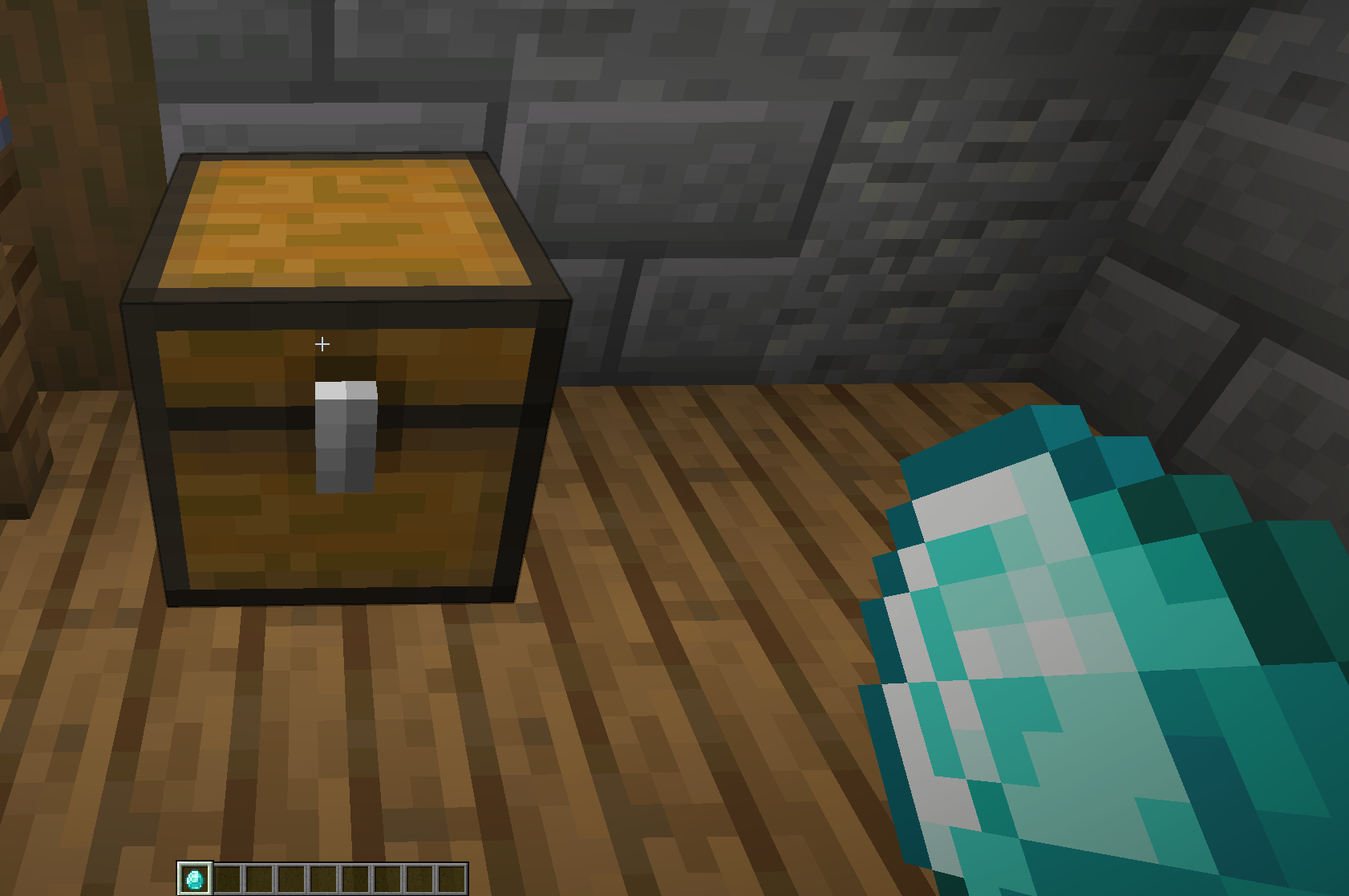
Creating a shop is pretty simple. Simply place down a chest and left-click it with the amount of items you want to sell. For example: If I want to sell 16 diamonds will I need to hold 16 diamonds in my hand and left-click the chest with it.
After left-clicking the chest, you will be prompted in the chat for how much you like to sell the item for. Type in the chat the amount and press enter.
After the shop has been created, you can fill its stock by simply opening the chest.
**Warning** Using chests in shop regions for anything else than sales is forbidden. Do not store items in these chests as they will be deleted and you will be punished accordingly.
[](https://wiki.unitedfactions.net/uploads/images/gallery/2021-07/shop-create.png)
#### **Useful shop commands:**
**/qs**
Get useful overview of quickshop commands
---
**/qs buy**
Change the shop to buying items
---
**/qs sell**
Change the shop to selling items
---
**/qs price**
Change the buy/sell price of the item
# Acquiring virtual currency
#### **Acquiring virtual currency**
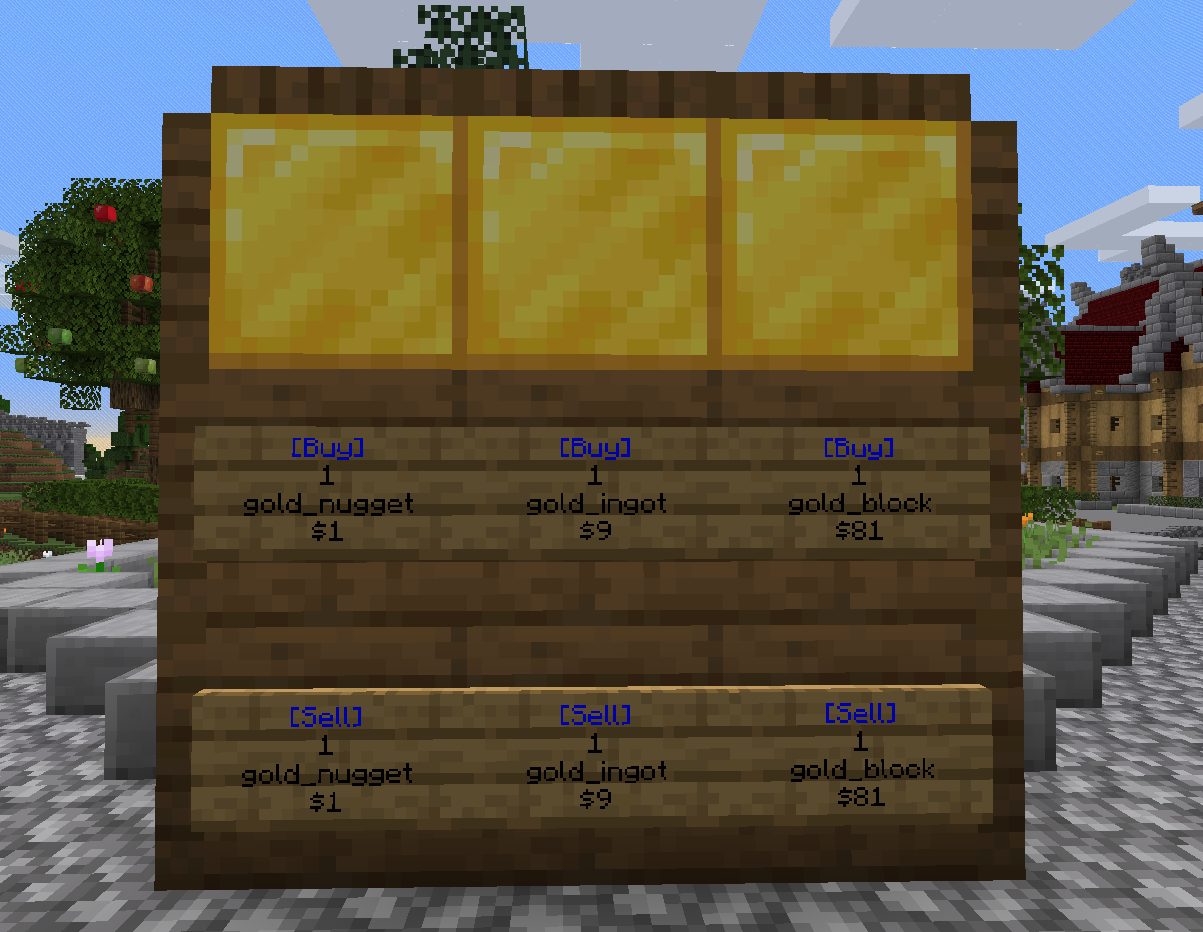
To acquire virtual currency, the currency you see when you press **TAB** or type **/bal** you have to convert physical gold. This converting can be done at a convertion station. These stations can be found close to locations you require virtual-currency at.
[](https://wiki.unitedfactions.net/uploads/images/gallery/2021-07/converting-station.png)